
Remove Leading, Trailing, Extra & All Spaces in Excel – In One Click
Stray spaces are the silent killer of Excel data. They break VLOOKUP, XLOOKUP and pivot tables, they make your sorts look wrong, and they sneak in from anywhere – pasted-in PDFs, web scrapes, exports from other systems. Excel’s =TRIM() formula helps a little, but it requires a helper column, it cannot remove ALL spaces, and most painfully it does not touch non-breaking spaces (Char 160) – the kind that almost always come back with text copied from the web. Dose for Excel adds a real one-click Remove Spaces tool with four modes (Leading, Trailing, Extra, All), in-place editing, optional sheet backup, and built-in non-breaking-space cleanup that =TRIM() cannot do.
Click DOSE » Text » Trim Spaces

Why Excel’s TRIM() Formula Isn’t Enough
Excel’s built-in =TRIM(A1) function is a useful first step but it falls short in three big ways that most users only discover after wasting an hour:
- It needs a helper column. You write =TRIM(A1) in column B, drag it down, copy → paste-special as values back over column A, then delete column B. Repeat for every column you want to clean.
- It cannot remove all spaces. TRIM removes leading, trailing, and consecutive interior spaces – but if you need to strip every space (for codes, IDs, phone numbers), TRIM cannot do it.
- It does not touch non-breaking spaces (Char 160). Text copied from web pages, Word documents and PDFs almost always contains Char 160 – a space that looks identical to a normal space but has a different character code. =TRIM() ignores it, so your data still looks dirty after running the formula.
Dose for Excel’s Remove Spaces tool fixes all three. It edits cells in place (no helper column), gives you a fourth “remove all spaces” mode, and silently converts every Char 160 to a regular space before processing – so all four modes work even on dirty pasted-in data.
Key Features at a Glance
- Four trim modes – Leading only, Trailing only, Extra (TRIM-equivalent in place), or All (every space removed).
- Non-breaking space cleanup (Char 160) – every Char 160 is converted to a regular space before processing, so all four modes work on data copied from web pages and PDFs.
- Edits in place – no helper column, no =TRIM() formula, no copy-paste-special, no VBA.
- Two scopes – run on the selected range only, or on the entire current sheet’s used range with one click.
- Optional sheet backup – tick “Backup sheet” and Dose duplicates the active worksheet before applying any changes – your safety net for undo.
- Filter-aware – when your sheet is filtered, only visible rows are processed; hidden rows stay exactly as they were.
- Multi-area selection – select non-contiguous ranges with Ctrl-click and Dose handles them all at once.
- Live progress indicator – percentage complete shown during large operations, with ESC to cancel anytime.
- Performance-optimized – Dose temporarily switches Excel to manual calculation while running, so even hundreds of thousands of cells finish in seconds.
- Remember My Settings – your preferred mode, scope and backup choice are saved per user and re-applied automatically every time.
- Works in every modern Excel version – Excel 2010, 2013, 2016, 2019, 2021, 2024 and Microsoft 365, both 32-bit and 64-bit.
How to Remove Spaces in Excel (Step by Step)
- Install Dose for Excel and open any workbook – the DOSE ribbon tab appears automatically.
- Click DOSE » Text » Trim Spaces – the Remove Spaces pane docks on the side of your worksheet.
- Choose your scope: Selected range or Current sheet (used range).
- Pick a trim mode: Leading, Trailing, Extra, or All.
- (Optional) Tick Backup sheet if you want a safety duplicate before the change.
- Click Apply. Done – spaces removed in place, Char 160 cleaned automatically.
The Four Trim Modes Explained
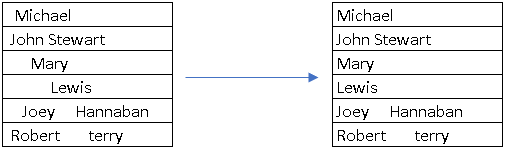
1. Leading Spaces
Removes spaces only from the start of each cell. Spaces between words and at the end of the cell are kept exactly as they were. Equivalent to =LTRIM() in many other languages – Excel does not have an LTRIM function, so this normally requires a long custom formula or VBA.
” Hello World” → “Hello World”
2. Trailing Spaces
Removes spaces only from the end of each cell. The most common cause of mysterious VLOOKUP and pivot-table mismatches – two cells look identical to your eye but one has a trailing space, so they don’t match. Equivalent to =RTRIM() in other languages.
“Hello World “ → “Hello World”

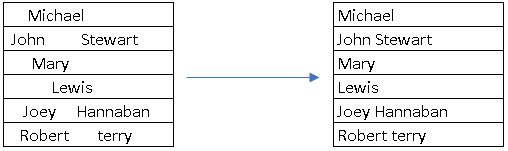
3. Extra Spaces
Collapses any run of multiple spaces between words to a single space, and trims the start and end of the cell. This is what Excel’s =TRIM() formula does – but Dose applies it directly to the cell with no helper column, and also handles non-breaking spaces (Char 160) that =TRIM() cannot.
” Hello World Foo “ → “Hello World Foo”
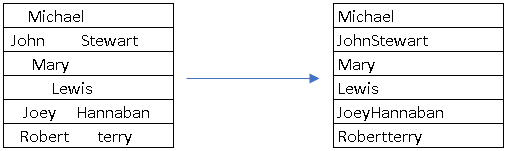
4. All Spaces
Removes every space from each cell – including spaces between words. Perfect for cleaning up product codes, SKUs, phone numbers, account numbers, ISBNs and any field that should not contain spaces at all. Excel’s =TRIM() formula cannot do this; it would require =SUBSTITUTE(A1,” “,””) in a helper column.
“ABC 123 XYZ” → “ABC123XYZ”
Cleans Non-Breaking Spaces (Char 160) Where TRIM() Fails
If you have ever run =TRIM() on data copied from a web page, a Word document or a PDF and watched the formula fail to clean it – this is why. Browsers and word processors use non-breaking spaces (Unicode character 160, sometimes written U+00A0, , or simply “Char 160”) to keep words together visually. They look identical to a regular space (Char 32) but Excel’s =TRIM() only removes Char 32, so Char 160 sails right through.
Dose for Excel’s Remove Spaces tool converts every Char 160 to a regular Char 32 space before applying any of the four trim modes. So if your data has stray non-breaking spaces, they get cleaned automatically – no detection step, no =SUBSTITUTE(A1, CHAR(160), ” “) nesting, no manual find-and-replace.
Optional Backup – Undo-Proof Workflow
Excel’s standard Ctrl+Z does not undo changes made by Dose for Excel (or by any Excel add-in that writes through the COM API). The Backup sheet option is your safety net: tick it before clicking Apply and Dose duplicates the active worksheet first, so the original is sitting next to the result, untouched. If the trim is not what you wanted, simply delete the modified sheet and rename the backup. We recommend ticking Backup sheet whenever you run Remove Spaces on important data, especially with the All Spaces mode – stripping every space is irreversible without it.
Bulk Process Whole Sheets in One Click
Pick the Current sheet scope and Dose runs the chosen trim mode across the entire used range – every text cell on the active worksheet, in one click. Or pick Selected range for surgical control: a single column, a multi-area selection (Ctrl-click), or whatever cells you have selected. A live percentage indicator shows progress, and you can press ESC to cancel at any time.
When the sheet is filtered, only the visible rows are processed – hidden rows are skipped automatically.
Demo: Remove Spaces in Excel in Action
Frequently Asked Questions
How do I remove spaces in Excel?
Install Dose for Excel, click DOSE » Text » Trim Spaces, choose the mode you need (Leading, Trailing, Extra, or All), pick a scope (selected range or current sheet), and click Apply. Spaces are removed directly in the cells – no formulas, no helper columns, no VBA. Non-breaking spaces (Char 160) are also cleaned automatically.
How do I remove only leading spaces in Excel?
Excel has no built-in LTRIM function. With Dose for Excel installed, click DOSE » Text » Trim Spaces, tick “Leading”, and click Apply. Spaces at the start of each cell are removed and spaces between words and at the end are kept exactly as they were.
How do I remove only trailing spaces in Excel?
Click DOSE » Text » Trim Spaces, tick “Trailing”, and click Apply. Spaces at the end of each cell are removed – a one-click fix for the most common cause of VLOOKUP, XLOOKUP and pivot-table mismatches: trailing spaces that look invisible to your eye.
Why doesn’t TRIM() remove all the spaces from my data?
Almost always because the cells contain non-breaking spaces (Char 160) – the kind used by web pages, Word documents and PDFs. They look identical to regular spaces but have a different character code, and Excel’s =TRIM() formula does not remove them. Dose for Excel converts every Char 160 to a regular space before applying any trim mode, so the cleanup actually works.
How do I remove non-breaking spaces (Char 160) in Excel?
Dose for Excel handles this automatically. Click DOSE » Text » Trim Spaces, choose any trim mode, and click Apply. Every Char 160 in the selected cells is converted to a regular Char 32 space before processing – there is nothing to configure. If you only want to convert Char 160 without trimming, use the Extra mode (it is the safest TRIM-equivalent and runs the Char 160 conversion).
How do I remove ALL spaces from Excel cells?
Excel’s =TRIM() formula cannot do this on its own. With Dose for Excel, click DOSE » Text » Trim Spaces, tick the “All” radio button, and click Apply. Every space in every selected cell is removed, including spaces between words. This is the right mode for cleaning product codes, SKUs, phone numbers and any field that should not contain spaces at all.
Can I remove spaces from multiple cells at once?
Yes. Choose the “Current sheet” scope to clean every text cell on the active worksheet’s used range, or “Selected range” for any range, multi-area selection (Ctrl-click), or whatever cells you have selected. A live progress percentage is displayed and you can press ESC to cancel at any time.
Does Remove Spaces work on filtered lists?
Yes. When your sheet is filtered, only the visible rows are processed – hidden rows are skipped automatically, so your filter stays intact.
What if I make a mistake – can I undo?
Use the built-in Backup sheet option. Tick “Backup sheet” before clicking Apply and Dose duplicates the active worksheet first, so you always have the original to revert to. Note: Excel’s standard Ctrl+Z does not undo Dose for Excel operations – this is exactly why the backup option exists. We strongly recommend ticking it whenever you use the All Spaces mode, since stripping every space is irreversible without a backup.
Which Excel versions are supported?
Dose for Excel works with Excel 2010, 2013, 2016, 2019, 2021, 2024 and Microsoft 365, both 32-bit and 64-bit, on Windows.
Related Dose for Excel Tools
If Remove Spaces saved you time, these related Dose for Excel text and data-cleanup tools usually save the same kind of formula chasing:
- Excel Data Cleaning – the all-in-one cleanup tool: trim spaces, change case, and convert text-to-numbers in one click on huge worksheets.
- Change Case in Excel – UPPER, lower, Proper or Sentence case in one click. The natural sister to Remove Spaces when normalizing names and addresses.
- Excel Extract Text – pull text before, after, or between specified characters – ideal for splitting names, codes and IDs out of mixed cells.
- Remove Only Text or Only Numbers – selectively strip text, numbers, or symbols from a column with one click.
- Reverse Text Order – flip characters or reverse word order using any delimiter (spaces, commas, custom).
- Browse all Dose for Excel features – 100+ tools that speed up everyday Excel work.
More Features:
Excel Remove Or Replace Comments
Advanced Comments Assistant For Excel If you ever want to remove comments or replace them…
Excel Backup Settings
Auto Backup Excel Workbooks Save time by auto backup your Excel files automatically once the…
Excel Count Words
Count Words in Excel — Cell, Range, Column or Whole Sheet in One Click Excel…
Excel Change Case
Change Case in Excel – UPPER, lower, Proper & Sentence in One Click Excel does…
Compare Lists in Excel
Compare Lists in Excel If you ever want to compare lists by looking up for…
Excel Compare Sheets – Advanced Excel Sheet Comparison Tool
Why Compare Excel Sheets? When working with finance reports, inventory audits, or versioned data sets,…