
Edit Settings of Dose for Excel
Using Dose for Excel settings, you can configure what tabs and buttons to show or hide in Dose tabs at Excel ribbon, for example if you think that you do not want to use some buttons in Dose tab then just hide them. Furthermore you can change the position of panes to appear on right or left side of Excel workbook. Dose for Excel’s Settings utility makes customization to Dose for Excel tabs easier to fit your needs.
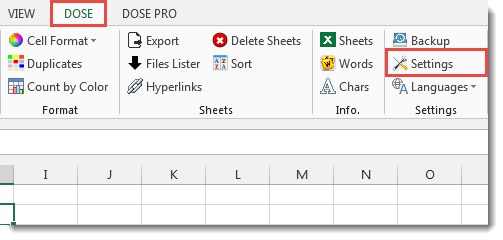
- Click DOSE » Settings

- Show / Hide Dose tabs and buttons
- Click on DOSE » Settings.
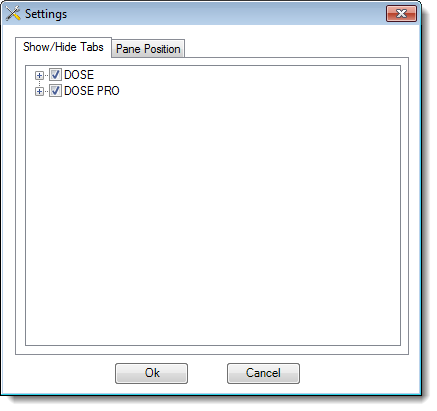
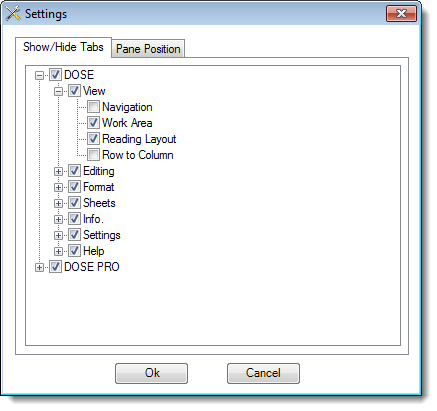
- Click on Show / Hide Tabs tab, you can hide the whole tabs or go deeply to show or hide specific buttons you want, for example you can hide Navigation button and it will not be there in Dose tab anymore unless you unhide it again.
- And then click OK. See screenshots.
- Change pane position
- Click on DOSE » Settings.
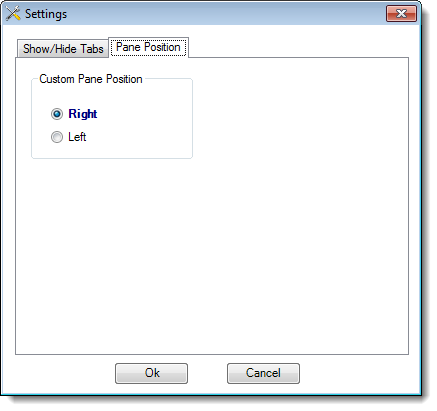
- Click on Pane Position tab, you can tell the position of all panes in Dose for Excel to popup from right side or left side, by default it will be right side.
- And then click OK. See screenshots.
More Features:
Excel Insert Before After
Add Text Before, After or at Any Position in Excel Cells in One Click Need…
Dose for Excel Languages
Dose for Excel Multi-Language Dose for Excel Add-In supports many languages, you can change the…
Excel Fill Blank Cells
Fill Blank Cells In Excel Range Fill blank cells in a range of cells could…
Excel Color Duplicates
Color Duplicated Cells Values In Groups In Excel Color the duplicated cells values, each group…
Excel Backup Settings
Auto Backup Excel Workbooks Save time by auto backup your Excel files automatically once the…
Compare Lists in Excel
Compare Lists in Excel If you ever want to compare lists by looking up for…