
Extract Text Before Or After Or Between Certain Characters In Excel Cells

You can add extract contents that match some rules set by you, for example you can extract contents before or after ‘@’ or even extract contents between parentheses or whatever you want. Dose for Excel‘s Extract Text utility can save you time and effort extracting text in from selection in a huge Excel worksheets.
- Extract text before a certain character
- Extract text after a certain character
- Extract text between a certain characters
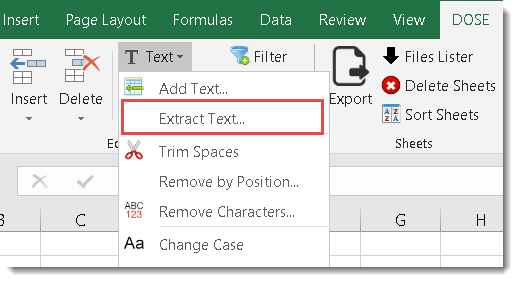
Click DOSE » Text » Extract Text

Extract text before a certain character
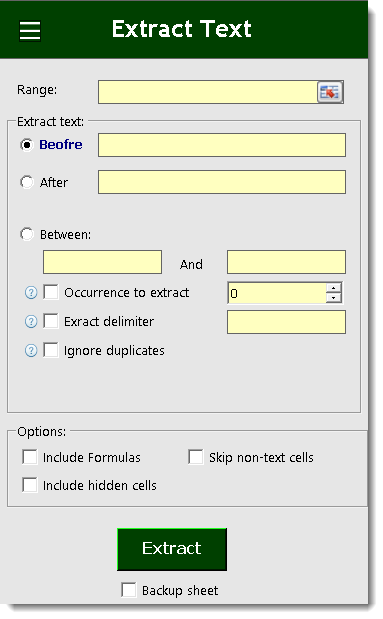
- Select range of cells, and check Before option and fill Text box with the character you want to extract contents before.
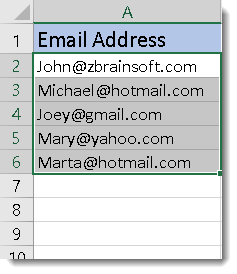
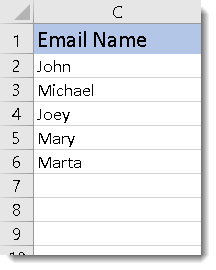
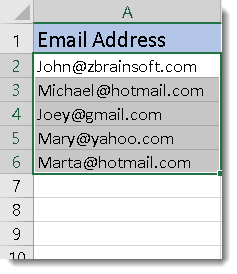
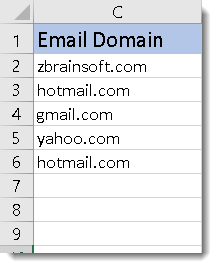
- Then click Extract. In below example we filled Text box with “@” You will see the result as shown in the below screenshot.
Extract text after a certain character
- Select range of cells, and check After option and fill Text box with the character you want to extract contents after.
- Then click Extract. In below example we filled Text box with “@” You will see the result as shown in the below screenshot.
Extract text between a certain characters
- Select range of cells, and check Between option and fill both Text boxes with the characters you want to extract contents in between.
- Ability to choose ignore duplicates from extracted text, or extracting for example the 2nd occurrence, and also you can specify the delimiter between the extracted contents.
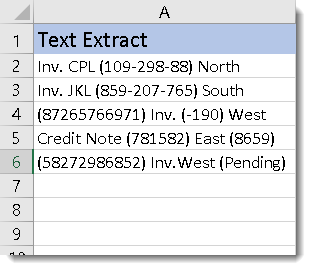
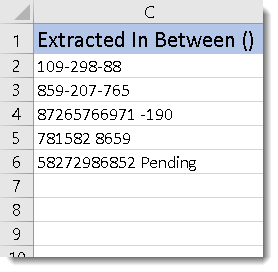
- Then click Extract. In below example we filled Text boxes with “(” and “)” You will see the result as shown in the below screenshot
Demo
More Features:
Excel Row To Column View
Excel Row To Column Excel row to column utility will help you view a large…
Excel Select Specific Cells
Select Specific Cells In Excel Sheet If you ever want to select some specific cells…
Excel Advanced Functions
Use Built-In Advanced Functions In Excel You can quickly use built-in functions without writing VBA…
Excel Sort Sheets
Sort Sheets by alphanumeric or date In Excel Sort your sheets in your current workbook…
Excel Select Used Range
Select Used Range With One Click Most annoying thing is when you want to select…
Excel Split
In Excel, split the first and last word, or divide them by a delimiter or…