
Select Interval Rows Or Columns In Excel

Easily select interval rows or columns, for example, select each 2 rows every an interval of 3 rows, this will select 2 rows and then skip 3 rows then select 2 rows again and so on until the end of the selected range. Dose for Excel‘s Select Interval Rows / Columns utility can quickly do the task.
Click DOSE » Select » Select Interval Rows / Columns
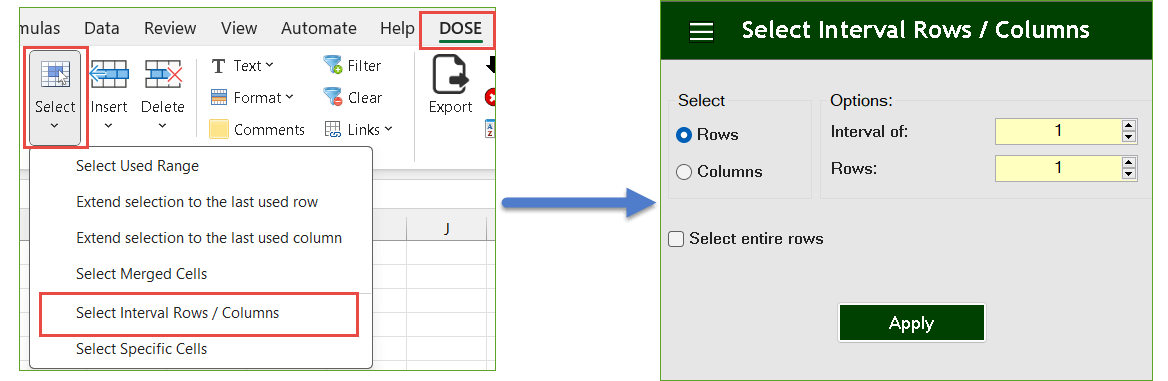
Demo: Select Interval Rows or Columns in Excel
Select Every Other Rows
- Select a range of cells.
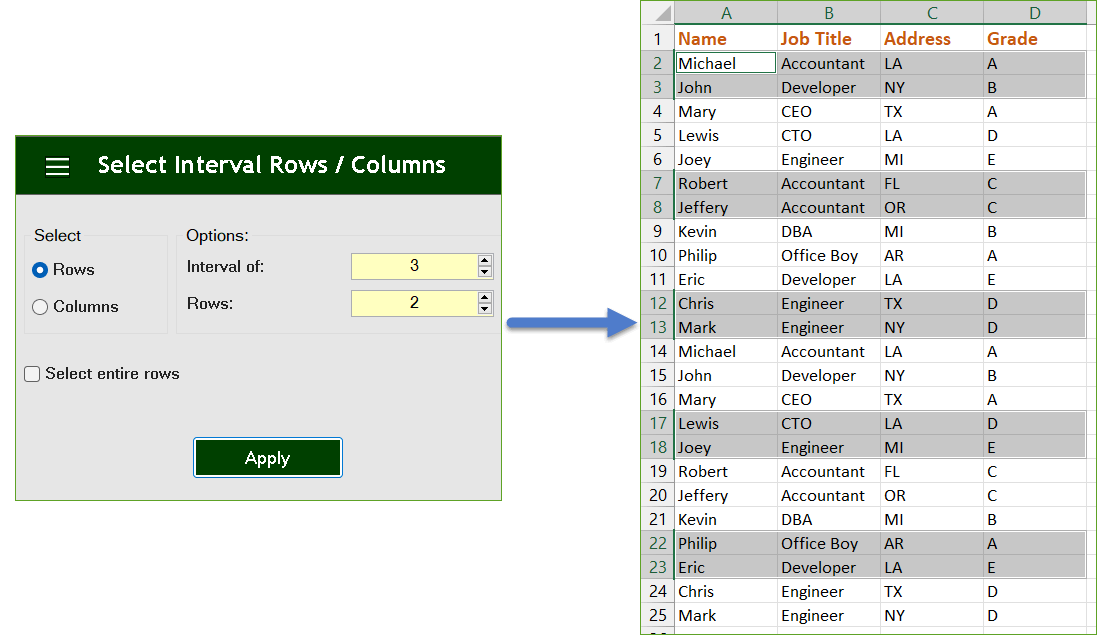
- And then apply this function by clicking on DOSE » Select » Select Interval Rows / Columns. For example, if you want to select 2 rows every 3 rows in a range then enter 3 in the Interval of box and 2 in rows box.
- Then click on Apply. See screenshots.
Select Every Other Columns
- Select a range of cells.
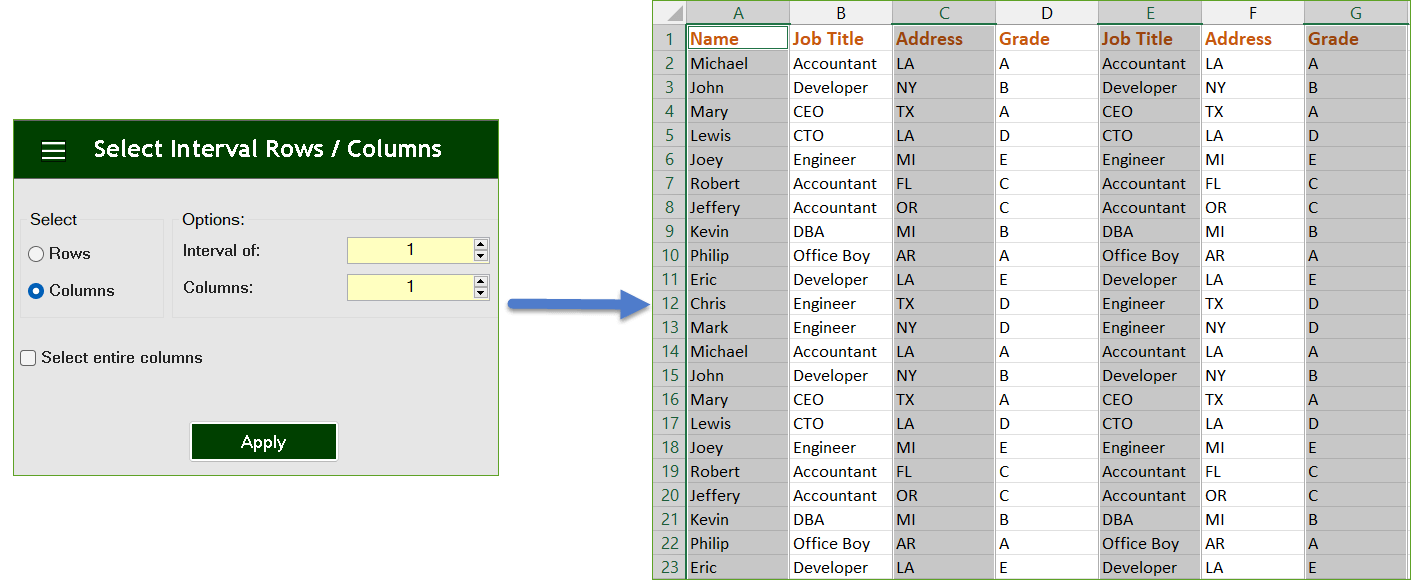
- And then apply this function by clicking on DOSE » Select » Select Interval Rows / Columns. For example, if you want to select 1 column every 1 column in a range then enter 1 in the Interval of box and 1 in columns box.
- Then click on Apply. See screenshots.
More Features:
Excel Extend Selection To The Last Used Column
Easily Extend Selection To The Last Used Column Normally if you want to select a…
Excel Insert Title Rows
Insert Title Rows In Your Excel Range Sometime you may need to add a title…
Excel Date Picker
Excel Date Picker – Click Any Date, Insert It Instantly Modern 64-bit Excel has no…
Excel Insert Before After
Add Text Before, After or at Any Position in Excel Cells in One Click Need…
Excel Delete Columns
Highlight Or Delete Any Type Of Columns Highlight or delete identical, empty, or hidden cell…
Compare Lists in Excel
Compare Lists in Excel If you ever want to compare lists by looking up for…