
Select Used Range With One Click
Most annoying thing is when you want to select a range of cells in your Excel sheet, and it stops at an empty column or row. Dose for Excel‘s Select Used Range utility can quickly select your range to the last used row and column despite of empty columns and rows.
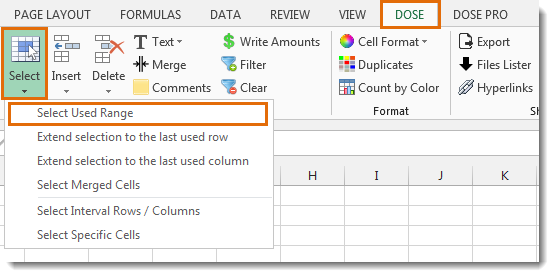
Click DOSE » Select » Select Used Range
Usage:
- Select a cell where you want the selection starts from.
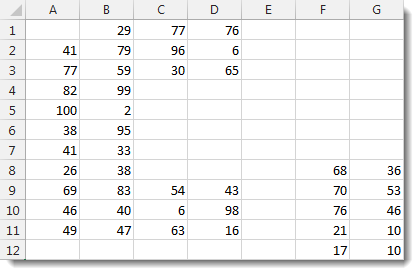
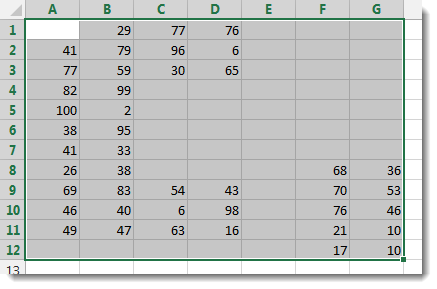
- And then apply this function by clicking on DOSE » Select » Select Used Range, and it will select all used range to the last used row and column, see screenshots:

More Features:
Excel Remove All Macros
Remove All Macros From Excel Workbooks Delete Macros, User Forms, VBA modules, etc. from Excel…
Excel Count Worksheets
Count Sheets In Excel Count sheets in Excel whether visible or hidden, a window will…
Excel Random Generator
Generate Random Data (Numbers, Date, String, etc…) Sometimes you want to generate some random data…
Reverse Text in Excel: Flip Words & Characters Without Formulas
Excel, a powerhouse for data manipulation, often presents unique challenges when dealing with text. One…
Excel Select Specific Cells
Select Specific Cells In Excel Sheet If you ever want to select some specific cells…
How To Color Alternate Row In Excel
Color alternate row or column in Excel With this utility you can quickly apply shading…